Node search
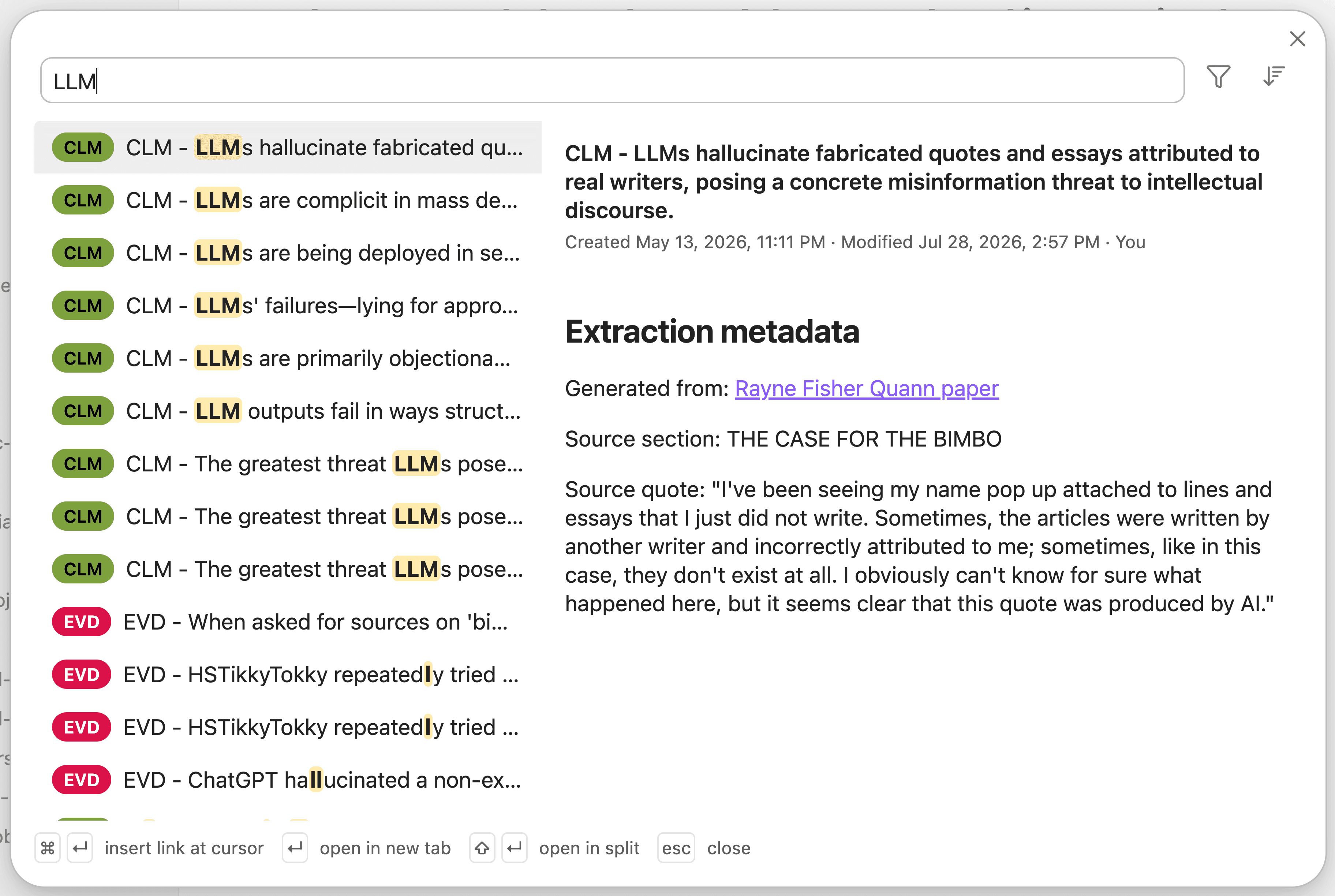
Node search is a dedicated surface to search and interact with discourse nodes in your vault.
Open the search
- Open the command palette with
Cmd/Ctrl + P - Search for “node search” and select Discourse Graph: Open node search
Filter by node type
There are two ways to narrow results to particular node types. Both drive the same filter, so you can start with one and finish with the other.
From the filter dropdown
Click the funnel icon to the right of the search field and tick the node types you want.
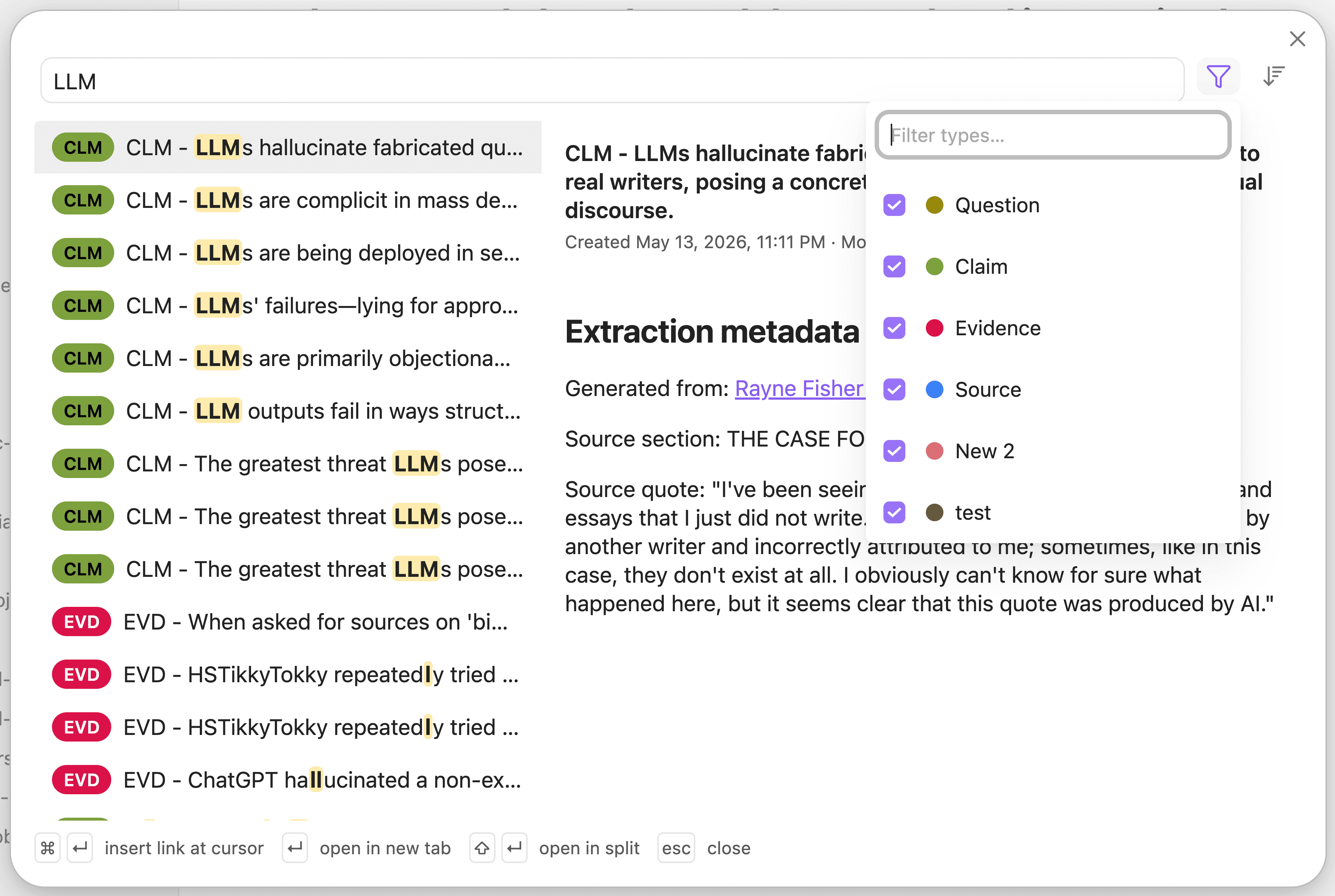
- Only — appears when you hover or focus a row, and narrows the filter to that single type
- Clear filter — removes the filter entirely and shows the count of types currently selected
- A Filter types… box appears once you have more than seven node types configured, so a long list stays manageable
A badge on the funnel icon shows how many types are selected. Selecting every type is the same as selecting none — both show all your nodes.
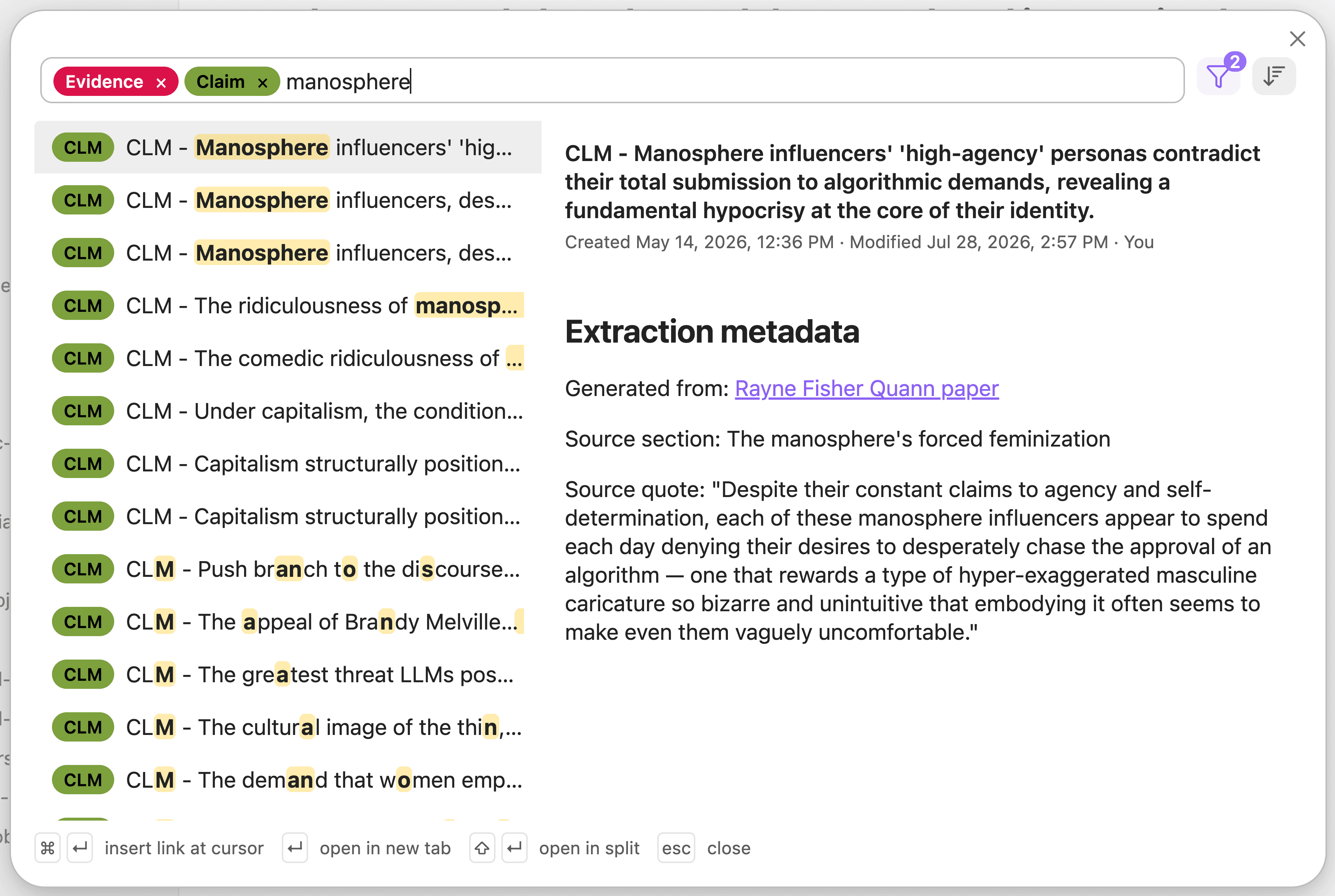
From the keyboard, as tag chips
Start typing a node type’s name in the search field and its full name appears as ghost text with a Tab hint.

Press Tab to turn it into a chip. The search field clears so you can immediately type another type name, or start typing the title you’re actually looking for.
Sort the results
Click the sort icon to choose how results are ordered.
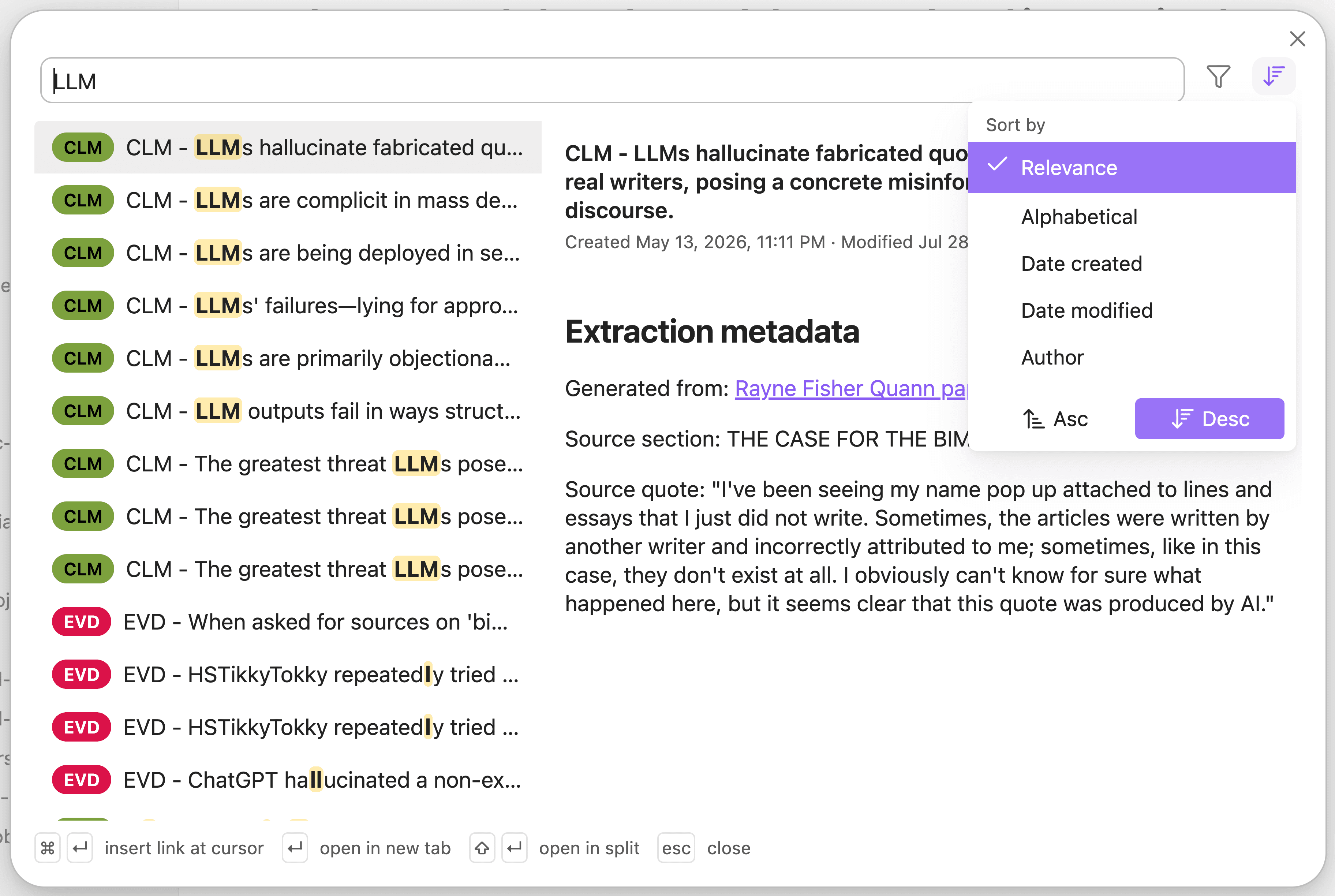
Notes with no resolvable author sort after every named author, in both directions.
Act on a result
The footer shows what you can do with the highlighted result, and every action there is clickable as well as keyboard-driven.
| Action | Shortcut |
|---|---|
| Insert a link to the result at your cursor | Cmd/Ctrl + ↵ |
| Open the result in a new tab | ↵ |
| Open the result in a split | Shift + ↵ |
| Close the search | Esc |